Set up a Wrist Kit
Out of the box
Wrist Kits are paired at the factory. Each camera has a small removable radio-beacon adapter on the back — keep it attached; it's what keeps the cameras in sync.
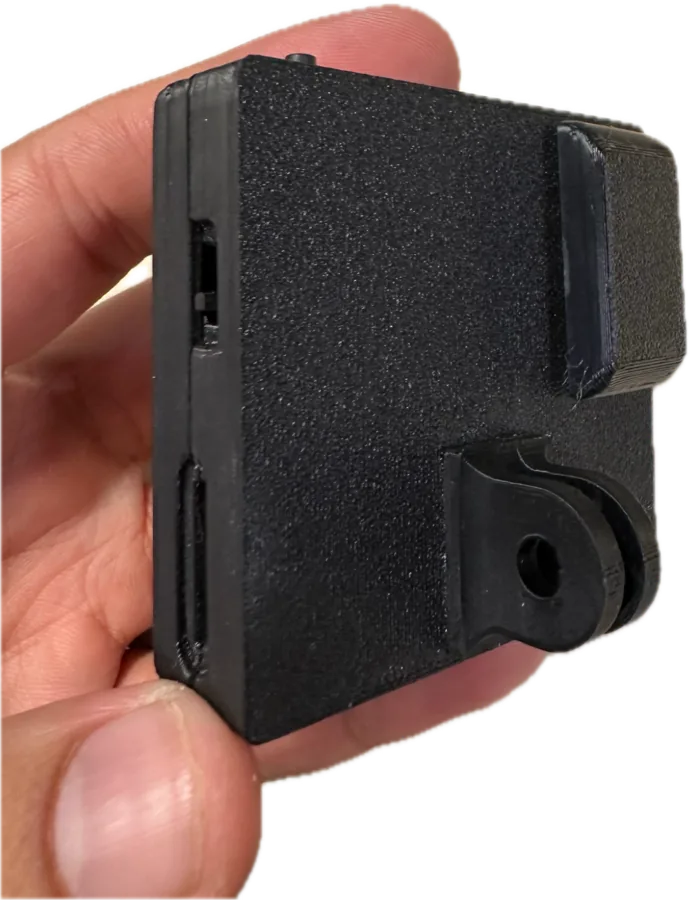
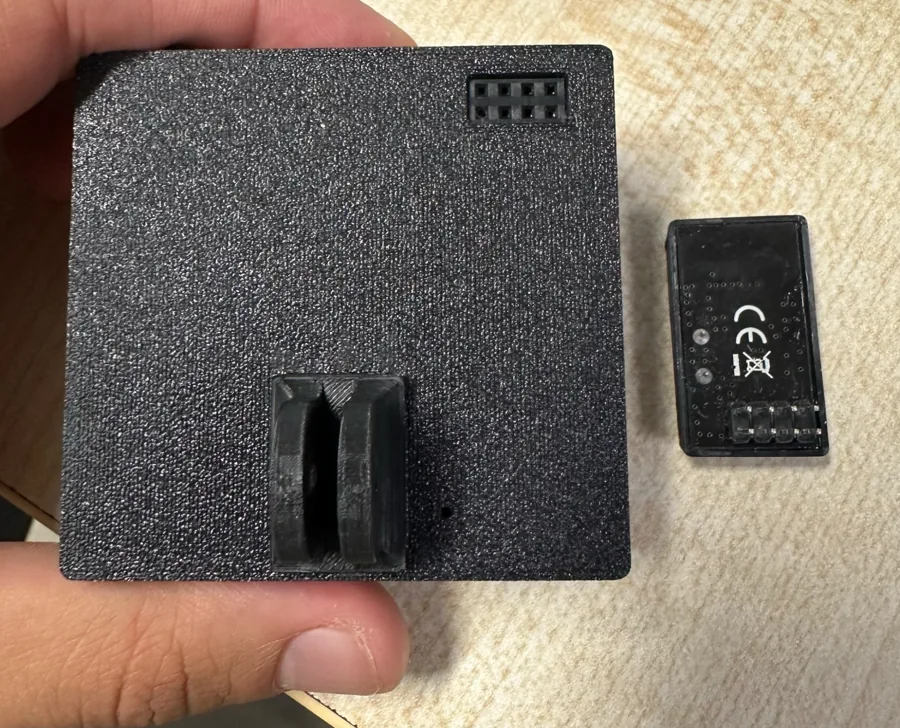
- Insert a memory card in every camera and connect power. Each light turns green.
- Tap the button on any camera. Its light turns blue, and about a second later every camera in the kit turns blue — all are recording.
- Tap any camera again to stop. Every camera saves its take (white) and returns to green.
If only one camera starts, check that every camera has its radio-beacon adapter attached, then pair the cameras as below.
Pair cameras into a kit
Use this to re-pair a kit, replace a camera or build a kit from separate cameras. All cameras must be ready (green) with the adapter attached.
- Choose the leader. On the camera you want as the kit leader, press and hold the button until its light blinks blue (about 3 seconds). Pairing is now open for 30 seconds.
- Join the others. On each other camera, double-tap the button. Its light blinks green while it searches, then gives a short green flash when it has joined — and the leader flashes green too.
- Wait for the leader. The leader keeps blinking blue until the 30-second window ends (hold its button again to close it early), then returns to green.
- Test. Tap any camera — all of them should start together.
Pairing is saved on each camera and survives power cycles.
Remove a camera from a kit
Triple-tap the button on that camera while it is ready (green). The light blinks red five times — the camera now records on its own.
During a kit recording
- Any camera controls the kit. Start or stop from whichever camera is easiest to reach.
- If the radio link drops, each camera keeps recording on its own and re-aligns automatically when the link returns. A camera powered on mid-take joins the take in progress.
- If a camera gets too warm, the whole kit pauses and resumes together once all cameras are cool. Stereo cameras show a red blink during the pause; tap to cancel it.
- If one camera's card fills up or is removed, the whole kit stops, so takes stay matched.
Watch the kit from your phone
With firmware 0.5.9 or newer, the Trinet app's Wireless status screen shows every camera in the kit — recording, card present, take number — and can alert you if one stops unexpectedly.