Use as a USB camera
Over USB, the camera streams video with the motion data and audio embedded, and the phone or computer records it.
- Install the Trinet app from Google Play (Android 9 or newer, with USB-C host support).
- Remove the memory card from the camera (or use a mode file
with
mode=uvc). - Connect the camera to the phone with a USB-C cable. The light turns
white when the camera is ready.
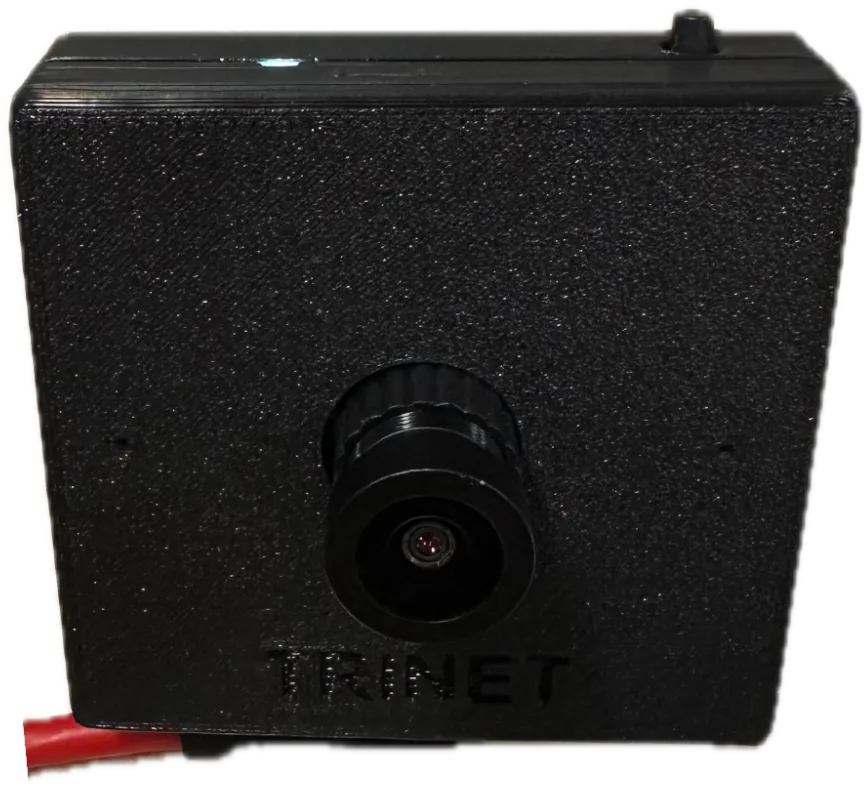
White: ready as a USB camera. - Open the app and allow access when Android asks for permission to use the camera (this can take a few seconds to appear). The app shows Camera ready.
- Tap Record. You'll see the live preview; tap record to save to the phone. See Record and review.
In USB webcam mode the camera is a standard USB video device. Use the Python toolkit's USB recorder to save video with the embedded motion data, or any webcam software to view it.
Trinet Stereo and Stereo GS stream both eyes as one 3840×1080 side-by-side image.
iPhones connect to Trinet Mono in iPhone mode:
Good to know
- The live stream is always H.264, 30 fps.
- Settings you change in the app are stored on the camera. On Trinet Mono they apply to card recordings too; Trinet Stereo and Stereo GS card recordings always use 10 Mbps per eye, whatever the bitrate setting (the recording codec setting does apply).
- In USB modes the camera's button does nothing — record from the app.
- Some USB hubs and very long or worn cables cause disconnects. Use a good-quality USB-C cable.