Update the firmware
Firmware updates bring new features and reliability fixes to your camera — see what changed in the release notes. You update from the Trinet app on an Android phone, over a USB-C cable. It takes a few minutes.
You need: an Android phone (9 or newer) with an internet connection, the Trinet app, and a USB-C data cable — the cable that came with the camera works. Some charge-only cables don't carry data.
- Install the Trinet app from Google Play, or update it if you already have it.
- Prepare the camera. Unplug it to turn it off, and remove the memory card if one is inserted.
- Connect the camera to the phone with the USB-C data cable. The camera's light turns white — it is now in USB camera mode.
- Open the app. After about five seconds Android asks whether to open Trinet for the
camera. Allow it, and grant the permissions the app asks for. The home screen shows the camera
as connected (Camera ready). If it says Camera found — Tap to allow access, tap it and allow
access.
Android asks for camera permission even though the app never uses your phone's own camera —
Android requires that permission for any app that reads a USB camera.
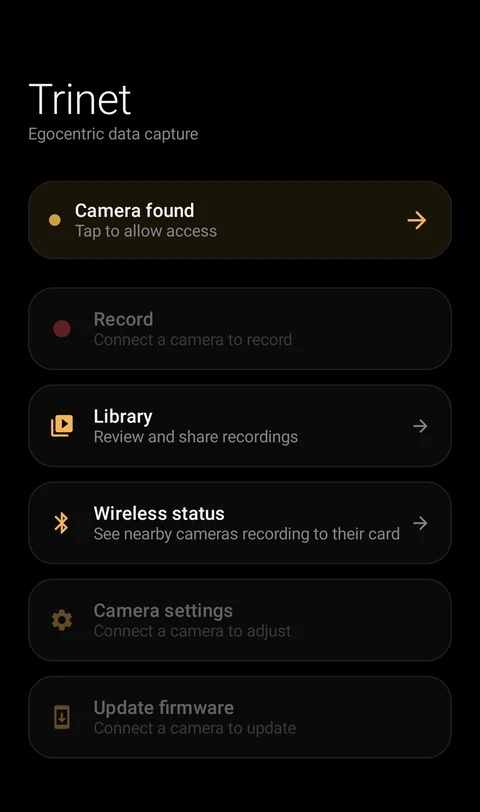
Camera found — tap to allow access. 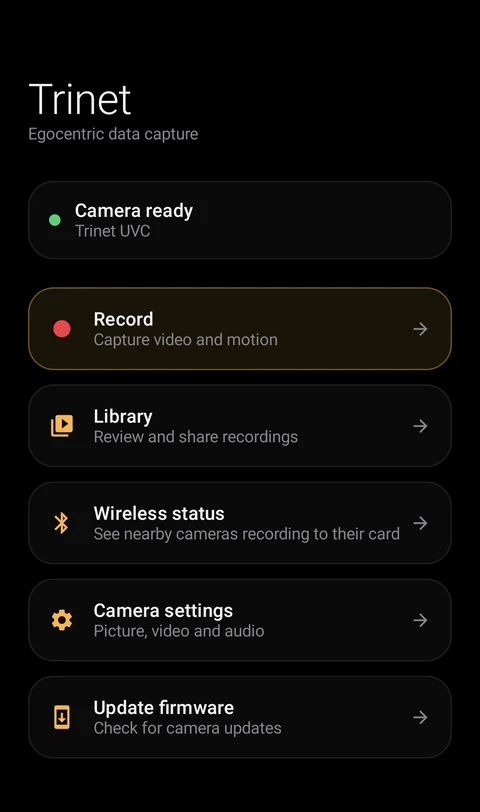
Camera ready. - Tap Update firmware. The Camera card shows that your camera is connected, and the
app checks for updates straight away. It shows the camera's installed firmware version and
whether an update is available, with a short note on what's new. (If you see a Check for
updates button instead, tap it.)
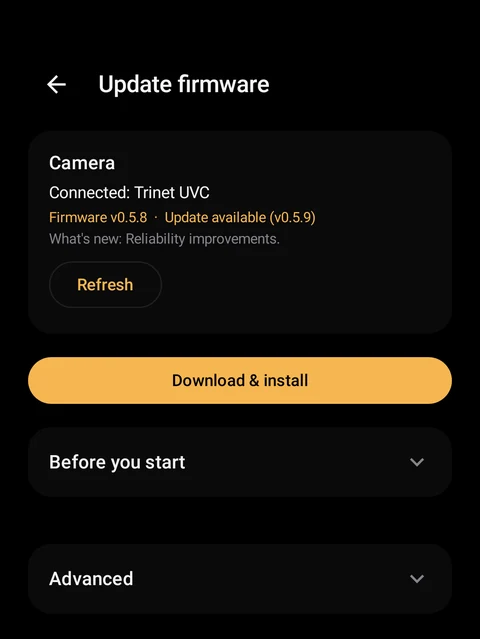
Update available. 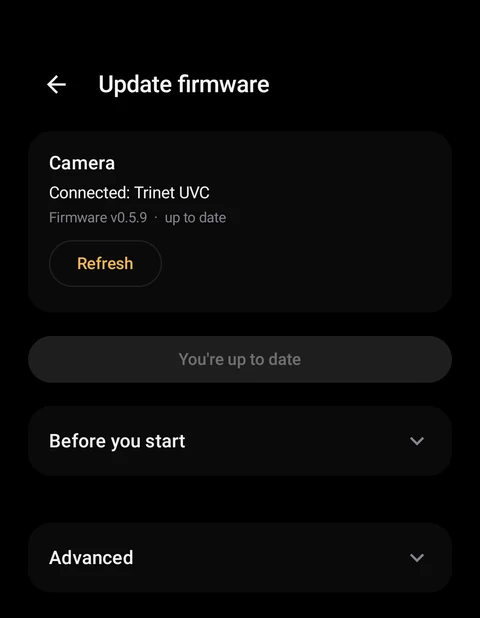
Already up to date — nothing to do. - Tap Download & install and keep the camera plugged in. The app downloads the update
and switches the camera to update mode — its light turns
pink, or may go off.
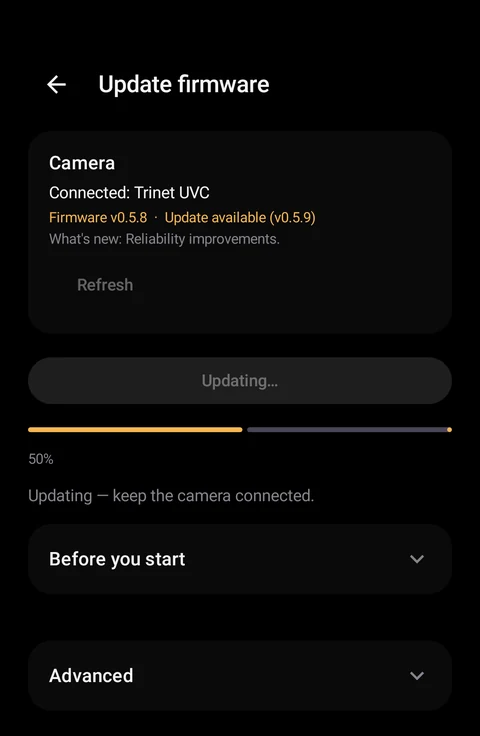
Updating — keep the camera connected. - Allow access to Trinet OTA. Android asks Allow Trinet to access Trinet OTA? — this is your camera in update mode. Tap OK.
- Wait while the camera finishes. When the firmware has been sent, the app shows
Update started and tells you how long to wait:
- Most updates — about 30 seconds. The camera restarts on the new firmware by itself.
- Updates to very old firmware (0.1.5 or earlier) — about 2 minutes. Then unplug the camera and plug it back in to finish.
Don't unplug or restart the camera early
Leave it connected for the time the app shows, even if the light changes or goes off. If in doubt, wait the full 2 minutes.
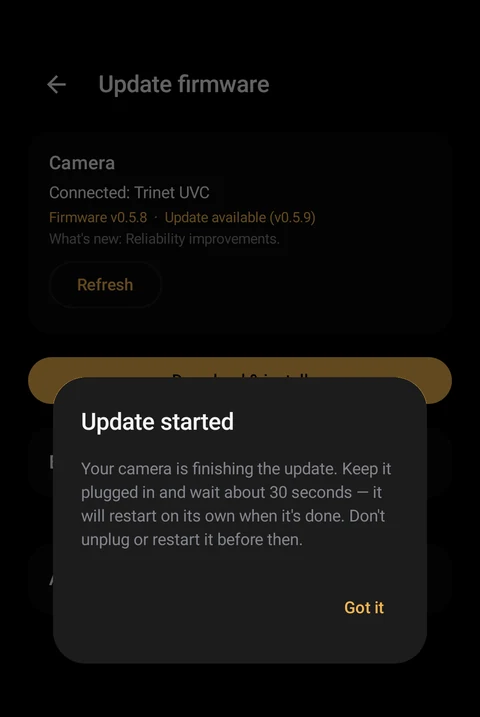
Follow the wait time the app shows. - Check the new version. Once the camera has restarted (or after you've unplugged and reconnected it, if the app asked you to), open Update firmware again — it shows the new version.
Screenshots show an example update from 0.5.8 to 0.5.9; your version numbers will differ.
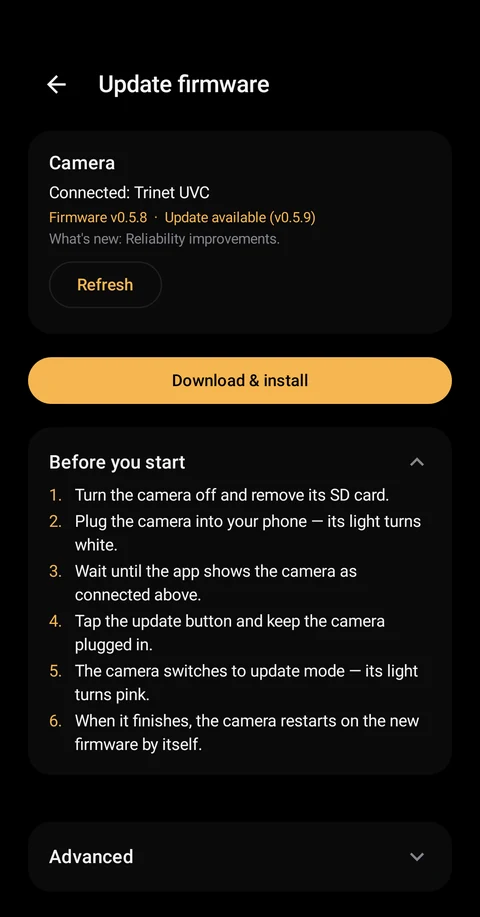
Checklist in the app
The Before you start section on the Update firmware screen repeats these steps, so you can follow along on the phone.
If something goes wrong
| Problem | What to do |
|---|---|
| No prompt to open the app, or the app shows No camera detected | Check that the memory card is out and the light is white. Try the cable that came with the camera — it must be a data cable. Open the app yourself and wait a few seconds. |
| You tapped Cancel on a permission prompt | Unplug the camera, plug it back in, and allow access when asked. |
| No updates are published for this camera model yet | Your camera already runs the latest firmware for its model. |
| The update stopped part-way, or the old version still shows | Leave the camera connected for 2 minutes, then unplug, reconnect and run the update again. |
| Trinet Stereo on firmware older than 0.5.5 | These cameras need a one-time update from us first — contact us. |
| Still stuck | Contact us with your camera model and the version the app shows. |
For sites without internet, the app can also install an update file we send you — under Advanced on the Update firmware screen.
More about versions, and how to check a whole kit at once: Firmware.